
Issue
After activating TruAge on a Passport POS, the scanner fails to scan Driver's Licenses or the TruAge QR code. This often appears along with the following error on the Passport POS:
"Date is not contained in the data...."
Cause
This error occurs when the Datalogic 2D scanner is not connected or programmed correctly, so it is not sending the correct data format to the POS after TruAge is activated.
Resolution
Reprogram and reconnect the Datalogic 2D scanner using the steps below.
Step 1: Check the Connection
Confirm the scanner is connected to the Scanner Serial port on the Passport POS — not the USB port. The USB connection is not supported by Invenco.
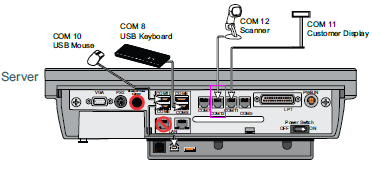
Step 2: Confirm You Have the Correct Cables
The following Datalogic cables and adapters are required to connect the scanner to the POS:
| Component | Part Number |
|---|---|
| Datalogic RS232 Serial Cable | Q12651-35 (90A051230 Cable) |
| Power Supply | 8-0935 (Datalogic) |
| Power Cord | 6003-0941 (Datalogic) |
| Gilbarco Adaptor (DB9 to RJ connector) | Supplied by Gilbarco |
Note: The Gilbarco adaptor converts the scanner's DB9 cable connector to the RJ connector used on the POS. Gilbarco should supply this adaptor, since scanners typically connect via an RJ port.
Step 3: Program the Scanner
Scan the programming QR code below to set the required parameters on the Datalogic scanner in a single pass:
| Setting | Value |
|---|---|
| RS232 Configuration | 9600 7 E 1 |
| UPC | E to A expand |
| Label ID | Disable |
| Driver's License Parsing Format | DOB, DOE, License No, License State |
| Parsing Format String | mm/dd/yyyy,mm/dd/yyyy,licenseno,ST |
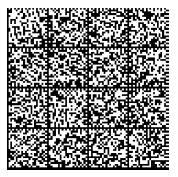 Step 4: Test
After reprogramming, scan a Driver's License and the TruAge QR code to confirm the Passport POS reads the data correctly and no longer returns the "Date is not contained in the data" error.
Applies to: Passport POS, Datalogic 2D Scanner, TruAge activation