
Requirements:
-
A compatible 2-D scanner is required in order to scan the drivers licenses and the TruAge QR Code.
- Invenco Passport version 24.04 MP 13 or higher software is required for TruAge to be enabled.
NOTE: Version 24.04 MP 23 / 25.01 MP 14 / 26.01 MP 1 all have the Penny Rounding feature.
Setup Process:
Add TruAge Host URL’s to your firewall rules for your MNSP device- Add all of the host URL’s to the firewall rules.
- NACS TruAge Production Environment
- https://admin.truage.host – 34.149.106.178
- https://router.truage.host – 34.107.243.142
- https://tas.truage.host – 34.111.31.86
- Port: 443
- Create Your Unique Device ID
- In the Passport Configuration step you will need to enter a Site ID, it is also referred to as the Conexxus Site ID in some documents.
- This is a unique device id for each Passport system, it is an alphanumeric field.
- It can be all lowercase letters or all uppercase letters or letters and numbers.
- An example of a Device ID might be: STORENAME123 or just the initials of the store name: SN123.
- Passport Store Options Configuration (Manager Work Station)
- Store Options (Store -> Store Options -> Age Verification)
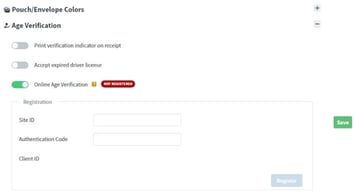
- Toggle on the Print verification indicator on receipt if you desire to have this function turned on.
- Toggle on the Accept expired driver license if you desire to allow the system to bypass the expired date check.
- Toggle the Online Age Verification switch
- You will see NOT REGISTERED until you register the site for TruAge
- Using the unique device id and authentication code received from the TruAge portal device setup from above
- Enter the Site ID. This is the Unique Device ID from the device setup in the TruAge portal.
- Enter your Authentication code from the device setup in the TruAge portal
- Click on Register.
- If the site can connect and register your Passport, the NOT REGISTERED will change to REGISTERED.

- Restrictions Configuration (Pricebook -> Restriction -> Online Age Verification)
NOTE: If the online age verification is not enabled for the restriction groups, the transaction will not get sent up to TruAge for evaluation.
- The online age verification option is by restriction group:
- If Online Age Verification option is disabled under Store Options, then Online Age Verification under each restriction should be present but disabled (light gray).
- If Online Age Verification option in Store Options is enabled, then Online Age Verification in Restrictions should be enabled, and if this last switch is toggled off, the user is able to toggle it on.

- The online age verification option is by restriction group:
- The option Allow Default button to be used for sales of age restricted items must also be toggled on.

- This option allows a Cashier to bypass the Customer's ID check for those states or stores that do not require an age check. If customers show other ID than driver's license (Passport ID, etc.) or if license is damaged, the Cashier can bypass Customer's ID check if retailer permits this ability.
- Store Options (Store -> Store Options -> Age Verification)